
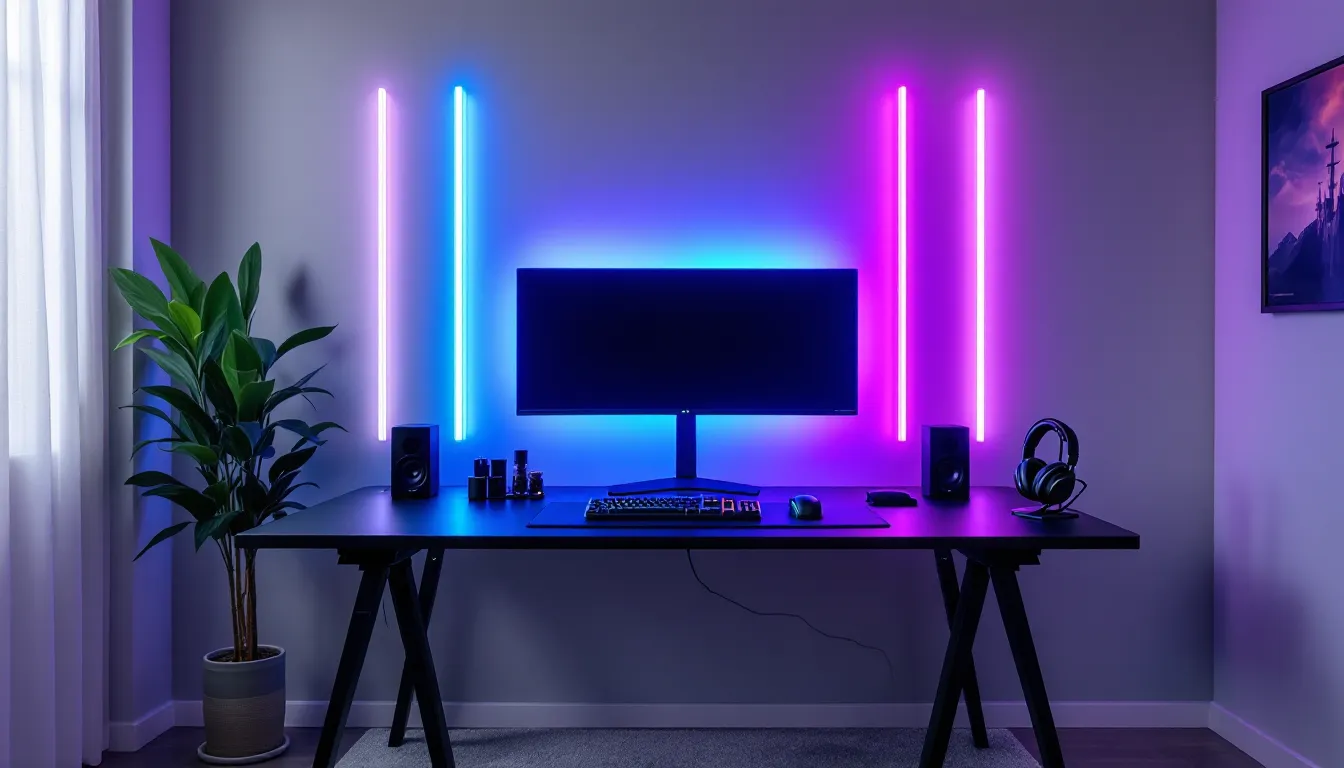

RGB lighting has evolved from a nice-to-have gimmick into a core component of modern gaming setups. Whether you’re streaming on Twitch, grinding ranked matches, or just want your battlestation to look incredible, the right lighting can completely change the vibe of your space. Govee has become one of the go-to names in smart lighting for gamers, offering a range of affordable, feature-packed options that sync with your gameplay, music, and entire ecosystem.
Unlike basic LED strips, Govee gaming light bars deliver focused, directional lighting that can highlight specific areas of your setup, your monitor, desk edges, or entire walls, while integrating with apps, voice assistants, and even in-game audio. They’re easier to install than full panel systems and offer more flexibility than static backlights. If you’re looking to level up your gaming environment without very costly or dealing with complicated wiring, Govee’s lineup deserves serious consideration. Let’s break down what makes these light bars worth the investment and how to get the most out of them.
Key Takeaways
- Govee gaming light bars combine affordable pricing with advanced features like app control, voice integration, and music sync, making them an excellent value choice for gamers upgrading their setups.
- Screen-reactive lighting technology in models like the DreamView series reduces eye strain and increases immersion by matching on-screen colors in real-time with sub-100ms latency.
- Installation is straightforward with adhesive mounting or optional screw mounts, and the Govee Home app provides intuitive control and customization for millions of color options and preset effects.
- Creating game-specific lighting profiles—such as static blue for competitive FPS games or warm reactive lighting for RPGs—enhances both gameplay immersion and focus depending on the title.
- While Govee gaming light bars excel in features and affordability compared to premium competitors, the 2.4GHz Wi-Fi limitation and adhesive reliability on textured surfaces require careful setup planning.
What Are Govee Gaming Light Bars?
Govee gaming light bars are modular LED lighting systems designed specifically for gaming setups. Unlike traditional LED strips that wrap around surfaces, light bars are rigid, self-contained units that can be mounted on walls, behind monitors, or along desk edges to create focused ambient lighting. Each bar houses multiple RGB LEDs capable of displaying millions of colors and dynamic effects.
The key difference between Govee’s light bars and generic RGB strips comes down to integration and control. Govee’s ecosystem connects via Wi-Fi and Bluetooth, allowing you to control everything through the Govee Home app, sync lights with music or gameplay audio, and even integrate with voice assistants like Alexa and Google Assistant. Some models include reactive features that respond to on-screen colors using a camera module, creating an immersive backlighting effect that extends your game visuals into the room.
They’re designed to be plug-and-play. Most models come with adhesive backing or mounting brackets, require just a single power connection, and can be controlled entirely from your phone or voice commands. For gamers who want customizable ambiance without running cables through walls or learning complex lighting software, Govee’s light bars hit the sweet spot between ease of use and feature depth.
The “gaming” branding isn’t just marketing either. These light bars are built with features gamers actually use: low-latency music sync, preset themes for different game genres, and compatibility with popular streaming software for on-camera aesthetics. They’re also modular, meaning you can start with a single unit and expand your setup over time as budget allows.
Key Features That Make Govee Light Bars Stand Out
RGB Color Customization and Effects
Govee light bars pack a serious color range. With 16 million color options and adjustable brightness levels, you can dial in anything from subtle warm white for late-night sessions to aggressive neon hues that pulse with your music. The Govee Home app includes dozens of preset effects, strobing, breathing, gradient cycles, and more, plus the ability to create custom color schemes.
The standout feature here is segmented control. Many Govee models let you assign different colors to different sections of the same light bar, creating flowing rainbow effects or multi-zone setups that match your desk aesthetic. You’re not stuck with one solid color across the entire strip. This level of granularity is what separates Govee from budget knockoffs that only offer basic color wheel selection.
You can also save your favorite configs as “scenes” in the app, making it easy to switch between your chill study lighting, aggressive FPS vibe, or streaming-ready setup with a single tap. The color accuracy is solid too, reds actually look red, not washed-out pink, which matters when you’re trying to match team colors or specific game themes.
Smart App Control and Voice Integration
The Govee Home app (available on iOS and Android) is the command center for all Govee devices. The interface is clean and responsive, letting you adjust brightness, switch effects, set timers, and group multiple light bars together for synchronized control. You can also create schedules, lights turn on when you typically start gaming and dim automatically at bedtime.
Voice control works through Alexa and Google Assistant. Simple commands like “Alexa, set gaming lights to blue” or “Hey Google, turn on gaming mode” work reliably. It’s particularly handy mid-game when you don’t want to tab out or grab your phone. Govee also supports IFTTT integration, so if you’re into smart home automation, you can trigger lighting changes based on other events (like your PC booting up or a Twitch stream going live).
One minor gripe: the app occasionally requires firmware updates before you can use new features, and the update process can take a few minutes. It’s not a dealbreaker, but it’s something to be aware of if you’re setting up right before a session.
Music Sync and Reactive Lighting
This is where Govee really shines for gaming setups. Music sync mode uses your phone’s microphone or a built-in mic on the light bar controller to analyze audio in real-time and adjust lighting effects to match the beat, bass, and intensity. When you’re listening to a hype playlist or in-game music kicks in during a boss fight, the lights pulse and shift in sync.
The sensitivity and reactivity can be adjusted in the app, so you can fine-tune whether the lights respond to every sound or just major beats. For streamers, this creates a dynamic background that reacts to gameplay audio, making your stream visually more engaging without additional software overlays.
Some Govee models, like the DreamView series, include a camera module that captures on-screen colors and replicates them on your light bars. When you’re exploring a lush forest in an RPG, your lights glow green. Enter a fiery dungeon, and they shift to orange and red. It’s incredibly immersive and works across all content types: games, movies, YouTube, whatever’s on your screen. The camera mounts on top of your monitor and has surprisingly good color-matching accuracy, even with fast-moving scenes.
Top Govee Gaming Light Bar Models in 2026
Govee Gaming Light Bar Pro
The Govee Gaming Light Bar Pro is the flagship model aimed squarely at serious gamers. It features dual-sided RGB lighting, meaning it illuminates both forward (toward you) and backward (toward the wall), creating a layered ambient effect. Each bar is roughly 15 inches long and can be daisy-chained up to six units for extended coverage.
Key specs include Wi-Fi 2.4GHz and Bluetooth 5.0 connectivity, support for 16 million colors, and compatibility with the full Govee ecosystem. The Pro model includes an upgraded music sync chip with lower latency (sub-100ms response time), making it noticeably more responsive during fast-paced FPS matches or action sequences.
It also supports Matter protocol as of the Q1 2026 firmware update, which means better cross-platform smart home integration if you’re running a mixed ecosystem. Retail price hovers around $89.99 for a two-bar kit, which is competitive given the feature set. Installation is straightforward with included 3M adhesive strips and optional screw mounts for more permanent setups.
Govee Glide Hexa Light Panels
While technically panel-based rather than traditional bars, the Govee Glide Hexa panels deserve mention for gamers who want modular wall art. Each hexagonal panel measures about 9 inches across and connects magnetically to others, letting you create custom geometric patterns on your wall.
These panels support the same app control, music sync, and voice integration as the light bars, but with the added benefit of individually addressable LEDs per panel. You can create flowing color effects that ripple across your entire panel arrangement, or assign different colors to each hex for a more static aesthetic.
The Hexa panels work great for streamers who want a distinctive background or gamers building a themed setup around a specific game or franchise. They’re pricier, a 10-panel starter kit runs about $169.99, but the visual impact is undeniable. Just be aware that these are wall-mounted, so they’re not as flexible for renters or frequent movers.
Govee DreamView Gaming Light Bars
The Govee DreamView series is built around screen-reactive lighting. The kit includes two light bars (designed to sit vertically beside your monitor), an HDMI sync box, and a camera module. The sync box sits between your PC or console and your monitor, capturing video signal data to drive lighting effects in real time.
This setup offers the lowest latency for screen-reactive lighting, under 50ms in most cases, because it’s analyzing the actual video signal rather than using a camera. The result is near-instant color matching that feels truly synchronized with gameplay. When you’re playing competitive shooters and the muzzle flash goes off, the lights react before you even register it visually.
The DreamView system also supports multiple HDMI inputs (up to three), so you can connect your PC, PS5, and Xbox Series X simultaneously and switch between them in the app. Price is higher at around $149.99 for the complete kit, but for dedicated setups where you want maximum immersion, it’s worth the investment. Many gaming monitor reviews highlight how reactive backlighting can reduce eye strain during extended sessions, making this more than just an aesthetic upgrade.
How to Set Up Your Govee Gaming Light Bars
Mounting and Installation Tips
Most Govee light bars use adhesive backing for installation. Before sticking anything, clean your mounting surface with isopropyl alcohol and let it dry completely. Dust and oils will weaken the adhesive bond, and you don’t want a light bar falling mid-stream.
Plan your layout before peeling any backing. Measure twice, stick once. For behind-monitor setups, position the bars so they’re hidden from your seated view but project light onto the wall. A good rule of thumb is to mount them about 2-3 inches from the monitor edges to create an even glow without visible hotspots.
If you’re mounting on textured walls or surfaces where adhesive won’t hold, use the included mounting clips and screws. This is especially important for ceiling installations where gravity is working against you. For renters, consider 3M Command strips as a damage-free alternative, just make sure they’re rated for the weight of your light bars.
Cable management matters. Govee light bars typically have a single power cable, but if you’re daisy-chaining multiple units, you’ll have interconnect cables too. Use cable clips or channels to run these along desk edges or behind your monitor stand. Visible cables kill the clean aesthetic you’re trying to achieve.
Connecting to the Govee App
Download the Govee Home app and create an account (or log in if you already have one). Make sure your phone is connected to your 2.4GHz Wi-Fi network, Govee devices don’t support 5GHz bands. Plug in your light bar and it should enter pairing mode automatically (indicated by blinking lights).
Tap the “+” button in the app and select your light bar model from the device list. The app will search for nearby devices via Bluetooth first, then complete the setup over Wi-Fi. Follow the on-screen prompts to name your device, assign it to a room (like “Gaming Setup” or “Battlestation”), and run through the initial configuration.
If you’re setting up multiple light bars, you can group them in the app so they all respond to the same commands. This is crucial for maintaining synchronized effects across your entire setup. The grouping interface is intuitive, just drag and drop devices into the same room or create a custom group.
For DreamView models with camera modules, you’ll need to calibrate the camera after mounting it. The app will display colored blocks on your screen and guide you through positioning the camera so it captures the entire monitor area. This calibration step takes about two minutes and dramatically improves color-matching accuracy.
Creative Placement Ideas for Maximum Impact
Behind the Monitor Setup
The classic placement. Mounting light bars behind your monitor creates a backlight effect that reduces eye strain and makes your screen appear to float. Position the bars to form a rectangle or bracket shape around your monitor edges. For ultrawide monitors (34 inches or larger), you’ll want at least four light bars to maintain even coverage.
Angle matters here. If the bars are flush against the wall, you’ll get a soft, diffused glow. Mounting them at a slight angle (using spacers or angled brackets) can direct more light downward onto your desk surface, creating a dual-purpose setup that illuminates both the wall and your keyboard/mouse area.
For multi-monitor setups, either treat each monitor as its own lighting zone or create a unified backlight across all screens. The unified approach requires more light bars but creates a seamless effect where colors flow across your entire display array.
Desk and Wall Accent Lighting
Beyond the monitor, light bars can highlight other parts of your setup. Mounting a bar along the front edge of your desk (underneath, facing down) creates an underglow effect that illuminates your legs and floor. It’s subtle during normal use but looks fantastic in photos and streams.
Wall-mounted accent bars can frame posters, shelves, or gaming collectibles. Think of them as spotlights for your favorite gear. A single light bar mounted above your headset stand or controller rack draws the eye and adds depth to your setup’s visual hierarchy.
Some gamers use light bars to create “zones” in larger rooms, one color scheme around the gaming desk, another near the couch or streaming area. This works particularly well if you’re using the same room for multiple purposes and want lighting that adapts to the activity.
Ceiling and Corner Configurations
Ceiling-mounted light bars aren’t common, but they can create incredible effects for dedicated gaming rooms. Mounted in the corners where walls meet the ceiling, they cast light both up and down, creating a perimeter glow that makes the room feel larger. This works especially well in smaller rooms or basements where you want to counteract the closed-in feeling.
Corner mounting (where two walls meet) uses the angle to spread light across both surfaces, creating a softer, more diffused effect than flat wall mounting. It’s also a good spot for hiding light bars in setups where you want the effect without visible hardware.
For ceiling installations, always use screw mounts, not adhesive. The risk of a light bar falling onto your monitor or keyboard isn’t worth it. Test your placement with temporary mounting first, painter’s tape works, to make sure the light angles work before committing to screw holes.
Optimizing Your Gaming Experience with Light Bars
Syncing Lights with Gameplay
Reactive lighting isn’t just eye candy, it can enhance immersion and even provide subtle gameplay cues. In horror games, having your lights dim or pulse red when taking damage adds to the tension. Racing games with lights that shift through the spectrum as you accelerate create a sense of speed beyond what’s on screen.
For competitive gaming, keep reactive effects subtle or disable them entirely during ranked matches. Flashing lights can be distracting when you need absolute focus, and some players find that dynamic lighting pulls their peripheral vision away from the screen. Save the full reactive experience for casual sessions or single-player games where immersion beats precision.
If you’re using the camera-based reactive system, position your camera to capture only the game window, not your entire desktop. This prevents lighting from reacting to Discord notifications or browser windows when you tab out. The Govee app lets you define a capture zone, so take advantage of that during setup.
Creating Game-Specific Lighting Profiles
The Govee app lets you save custom scenes, and serious gamers should absolutely create profiles for different games or genres. Here’s how to think about it:
FPS/Competitive: Static, low-intensity blue or white lighting reduces distractions and maintains consistent visibility. Avoid pulsing or reactive effects.
RPG/Adventure: Warm, dynamic lighting that reacts to on-screen colors enhances the atmospheric elements these games rely on. Enable screen-reactive mode and set sensitivity to medium.
Horror: Deep reds and purples with slow breathing effects. Low brightness to maintain that dark, tense mood. Music sync set to high sensitivity so lights react to jump scares.
Racing/Sports: High-intensity, fast-cycling colors that respond to music and in-game audio. This is where you want maximum reactivity and brightness.
Streaming: Consistent, camera-friendly lighting that doesn’t flicker or create exposure issues. Cooler tones (blue-white) photograph better than warm yellows on most webcams.
Name your profiles clearly in the app so you can switch between them quickly. Many gamers also use gaming hardware reviews to find optimal lighting recommendations that professionals use for specific titles or genres.
Govee vs. Competitors: How Do They Compare?
Govee’s biggest competition comes from Philips Hue, Nanoleaf, and LIFX in the premium space, plus a flood of no-name brands on Amazon in the budget tier.
Philips Hue offers arguably better build quality and more refined color accuracy, but at nearly double the price. A Hue Play light bar kit runs around $150 versus $90 for comparable Govee models. Hue also requires a separate hub for most features, adding cost and complexity. The advantage? Rock-solid reliability and seamless integration if you’re already deep in the Hue ecosystem.
Nanoleaf competes more directly with Govee’s panel-style products. Their Shapes and Elements lines are modular and visually striking but start at $199 for starter kits. Nanoleaf’s app is slicker and their touch-reactive panels add an interactive element Govee doesn’t match. But, Govee’s screen-reactive features are better implemented, especially for gaming-specific use cases.
LIFX light strips and bars don’t require a hub and have excellent Wi-Fi connectivity, but their gaming-specific features lag behind Govee’s. They’re also pricier and less available, retail presence is limited compared to Govee’s wide distribution.
Budget brands on Amazon (often unbranded or white-labeled) can be tempting at $30-40 for light bar kits, but you’re gambling on quality. Common issues include poor adhesive, unreliable apps, limited color accuracy, and complete lack of customer support. For gaming setups where you’re investing in monitors, PCs, and peripherals, skimping on lighting usually means buying twice.
Govee hits the sweet spot: affordable enough for most gamers, feature-rich enough to compete with premium brands, and reliable enough to trust in your setup. The app ecosystem is mature, firmware updates are regular, and the company actually responds to user feedback. Several technology buying guides consistently rank Govee’s gaming light bars among the top choices for value and performance in the smart lighting category.
Pros and Cons of Govee Gaming Light Bars
Pros:
- Excellent value for features: You get app control, voice integration, music sync, and screen-reactive features at price points well below premium brands.
- Easy installation: Adhesive mounting and simple app setup mean most gamers can have a full lighting system running in under 30 minutes.
- Extensive customization: Millions of colors, dozens of preset effects, and custom scene creation give you near-unlimited creative control.
- Reliable connectivity: Wi-Fi and Bluetooth connections are stable. The app rarely crashes or loses connection mid-use.
- Expandable ecosystem: Start with one or two bars and add more over time. All Govee devices work together through the same app.
- Active development: Regular firmware updates add features and improve performance. Govee actually listens to user requests.
Cons:
- 2.4GHz Wi-Fi only: No 5GHz support can be limiting in congested network environments. This occasionally causes initial setup issues.
- Adhesive can fail on textured surfaces: While the 3M backing is strong on smooth surfaces, textured walls or certain desk finishes can cause bars to fall. Plan for screw mounting in these cases.
- App can be overwhelming: The sheer number of features and options makes the interface cluttered for new users. There’s a learning curve to finding and organizing everything.
- Color accuracy varies by model: Budget models have noticeably less accurate color reproduction than the Pro line. Whites can skew slightly blue or green.
- Camera sync requires calibration: Screen-reactive features work great after setup, but the initial calibration process is fiddly and may need occasional re-tuning.
- No Bluetooth mesh: Multiple devices connect independently rather than forming a mesh network, which can cause minor sync delays across large setups.
Troubleshooting Common Issues
Lights won’t connect to Wi-Fi: Make sure you’re on a 2.4GHz network, not 5GHz. Check that your router isn’t using special characters in the SSID or password, Govee devices can be picky about that. Reset the light bar by holding the power button for 10 seconds until it flashes, then try pairing again.
Colors don’t match on-screen content: Re-calibrate your camera module in the app. Make sure the camera has a clear view of your entire screen and isn’t being affected by other light sources in the room. Overhead lights or windows behind your monitor can throw off color detection.
Music sync is laggy or unresponsive: Check that the microphone (either in your phone or on the controller) isn’t obstructed. Adjust sensitivity settings in the app, sometimes lowering sensitivity actually improves responsiveness by filtering out background noise. If you’re using phone-based music sync, make sure the app has microphone permissions enabled in your phone’s settings.
Adhesive failed and bar fell: Clean the mounting surface thoroughly with isopropyl alcohol. Let it dry completely (wait 10-15 minutes). Consider using additional 3M strips rated for heavier weights, or switch to screw mounting. For temporary setups, Command strips rated for at least 3 pounds per strip work well.
Different bars show different colors in same group: This usually indicates one bar is running older firmware. Check for updates in the app and install them on all devices. After updating, power cycle everything (unplug for 30 seconds) and re-sync the group.
App crashes or freezes: Force close and restart the app. Make sure you’re running the latest version from the App Store or Play Store. If problems persist, try logging out and back in, or reinstalling the app entirely. Your scenes and settings are saved to your account, so you won’t lose configurations.
Lights turn on randomly: Check your schedules and timers in the app, you may have accidentally set a routine. Also verify that nobody else has access to your Govee account. If you’re using IFTTT or smart home automations, those can trigger unexpected behavior if not configured correctly.
Conclusion
Govee gaming light bars deliver serious value for gamers building or upgrading their setups in 2026. The combination of affordable pricing, extensive customization, and genuinely useful features like screen-reactive lighting and music sync makes them easy to recommend across skill levels and budgets. Whether you’re a competitive player who wants subtle accent lighting or a content creator building an impressive streaming background, Govee’s ecosystem has options that work.
The installation process is straightforward enough for first-time builders, and the app-based control means you’re not locked into static configurations. As your setup evolves, your lighting can adapt with it. Start with a basic behind-monitor setup and expand to full-room coverage over time without switching platforms or learning new software.
Are they perfect? No. The 2.4GHz Wi-Fi limitation and occasional adhesive issues are real considerations. But when you weigh the features against the price point, Govee punches well above its weight class. For most gamers, they’re the right choice, delivering enough functionality to satisfy enthusiasts without the premium pricing that puts high-end options out of reach.
If you’re ready to transform your gaming space from functional to immersive, Govee gaming light bars are a proven starting point. Just take time to plan your layout, calibrate your reactive features properly, and explore the full range of effects in the app. Your setup will thank you.